
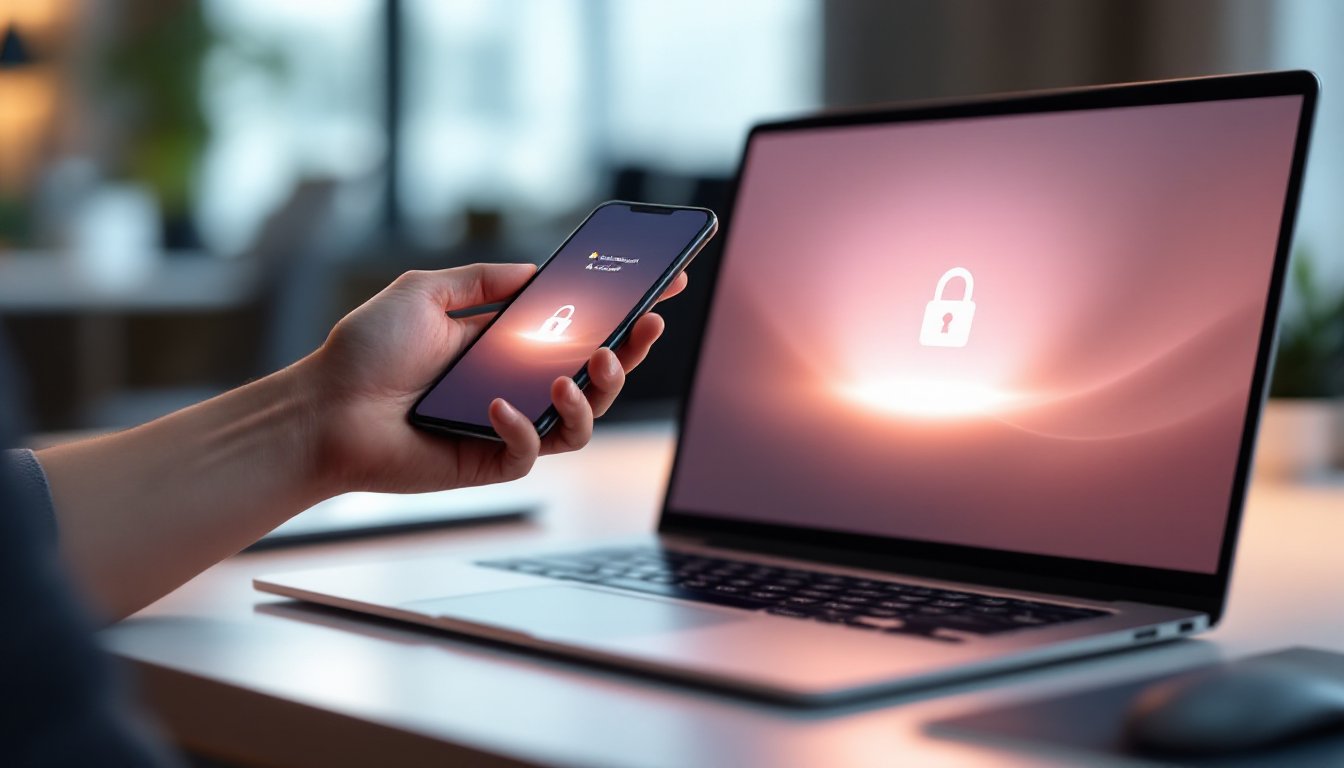

Chromebook users juggle a lot, work documents, personal email, school assignments, and sensitive accounts all living on one device. The last thing anyone wants is to fumble with passwords every few minutes or worry about unauthorized access. Smart Lock for Chromebook is designed to solve that friction point. It automatically unlocks your device when a trusted phone or other trusted device is nearby, blending convenience with security. This guide walks through how Smart Lock works, how to set it up, and what to watch out for to keep your Chromebook secure without sacrificing usability.
Key Takeaways
- Smart Lock for Chromebook automatically unlocks your device when a trusted Android phone is nearby via Bluetooth, eliminating constant password entry while preserving account security.
- Setup takes just minutes on the Settings menu: pair your Chromebook with an unlocked Android phone on the same Google Account, enable Bluetooth, and toggle Smart Lock on.
- Smart Lock enhances security by reducing password exposure, enabling stronger passwords, and requiring physical access to an unlocked phone to unlock your Chromebook remotely.
- Always keep your phone locked when away from your desk and maintain updated software on both devices, as an unlocked phone within Bluetooth range can compromise access to your Chromebook.
- Smart Lock works best for personal or home Chromebooks; enterprise and high-security environments should verify with IT before enabling, as some organizations disable the feature in device policies.
What Is Smart Lock for Chromebook?
Smart Lock for Chromebook is a Google security feature that lets your Chromebook recognize trusted devices, most commonly your Android phone, and automatically unlock when that device is near. Instead of typing your password every single time, you walk in with your phone in your pocket, sit down at your Chromebook, and boom: you’re logged in.
It’s built into ChromeOS and works across all Chromebooks that run a recent version (typically ChromeOS 33 and later). The feature doesn’t replace your password: rather, it removes the friction of typing it constantly while keeping your account protection intact. Your Google Account credentials remain secure: Smart Lock simply streamlines the unlock experience when a recognized device confirms your identity. This is a convenience layer, not a standalone security mechanism, so it works best as part of a broader account security strategy that includes two-factor authentication and strong passwords.
How Smart Lock Works on Your Chromebook
The magic behind Smart Lock relies on Bluetooth proximity detection and your Google Account. When you enable the feature, your Chromebook pairs with your Android phone via Bluetooth. From that point on, when you wake your screen or restart your device, ChromeOS checks whether your paired phone is within Bluetooth range (typically 10–30 feet, depending on signal strength and obstacles).
If your phone is in range and authenticated on the same Google Account, your Chromebook automatically logs you in without prompting for a password. Step away far enough, and the Bluetooth signal drops: your device locks again for security. The entire process happens in the background, no manual unlock tap needed.
Critically, Smart Lock only works when your phone’s screen is unlocked and Bluetooth is enabled. If your phone is powered off, Bluetooth is turned off, or your phone’s screen is locked, Smart Lock won’t trigger. This built-in safeguard prevents someone else from unlocking your Chromebook simply by being near your powered-off phone.
Trusted Devices and Phone Detection
You can set up more than one trusted device, a personal Android phone, a tablet, even a smartwatch running Wear OS. Each device must be on the same Google Account and have Bluetooth enabled. When you pair a device, ChromeOS stores a secure identifier, not your password. This means your password is never transmitted to or stored on the trusted device itself.
Your phone doesn’t need location services or any special app beyond the standard Google Account. It’s a native feature that works as long as both devices share your Google Account login. You can see which devices are trusted and revoke access at any time through your Chromebook’s settings, giving you full control over what can unlock your machine.
Setting Up Smart Lock on Your Chromebook
Setting up Smart Lock takes only a few minutes and requires your Chromebook and Android phone both signed into the same Google Account.
- On your Chromebook, open Settings and navigate to Security and privacy → Smart Lock and security.
- Select Manage Smart Lock or Set up Smart Lock.
- Look for available devices in range, your Android phone should appear in the list.
- Select your phone and confirm the pairing request that appears on your phone’s screen.
- Return to your Chromebook and follow any final setup prompts. Some versions ask you to verify your password once more to confirm you’re authorized to enable the feature.
- Toggle Smart Lock on.
On your Android phone, ensure Bluetooth is enabled and your device is unlocked (at least once during the pairing process). ChromeOS will verify that your phone can receive the pairing request. If pairing fails, check that both devices are using the same Google Account and that neither is connected to a restrictive network (corporate VPNs sometimes block Bluetooth pairing).
After setup, test it: lock your Chromebook manually (Ctrl+Alt+L or through the sign-out menu), step back into Bluetooth range with your phone unlocked, and wake the screen. You should bypass the lock screen and land on your desktop. If it doesn’t work on the first try, confirm both devices are on the latest version of ChromeOS or Android: older builds sometimes have compatibility quirks.
Key Security Benefits and Considerations
Smart Lock isn’t magic, and it comes with clear tradeoffs worth understanding before you enable it.
Security Benefits:
- Reduces password exposure: You type your password less often, lowering the statistical risk of someone watching over your shoulder or installing a keylogger.
- Encourages strong passwords: Because you enter it less frequently, you can use a longer, more complex password without suffering password-fatigue.
- Device-based authentication: Your phone acts as a second factor. Even if someone knows your password, they need physical access to your unlocked phone to unlock your Chromebook from afar.
- Revocable access: You can disable Smart Lock or unpair a device instantly through settings, with no password reset required.
Security Considerations:
- Bluetooth vulnerability: Bluetooth has known range and spoofing limitations. A sophisticated attacker with specialized equipment could potentially jam or exploit Bluetooth signals, though this is rare in typical home or office environments.
- Unlocked phone requirement: If your phone is stolen or left unlocked, someone near it can unlock your Chromebook. Always lock your phone when you step away.
- Proximity-based, not biometric: Smart Lock doesn’t verify you unlocked your phone, only that an unlocked device in range is on your account. Pair it with Android biometric locks (fingerprint or face unlock) for stronger assurance.
- Not suitable for high-security environments: If your Chromebook handles classified, medical, or financial data requiring zero-touch security, stick with password-only or hardware key authentication.
For most home and personal-use Chromebooks, Smart Lock strikes a solid balance. For work devices on shared networks, confirm with your IT department whether it’s permitted: some companies disable it in their device policies.
Troubleshooting Common Smart Lock Issues
Smart Lock sounds seamless until it isn’t. Here’s how to fix the most common hiccups:
Device not appearing during setup: Ensure Bluetooth is on, your phone is unlocked, and both devices are within 10 feet of each other. Restart Bluetooth on your phone by toggling it off and on again. If the issue persists, sign out of Google on both devices and sign back in using the same account.
Smart Lock stops working after a few days: Check that Bluetooth remains enabled on your phone. Some Android devices or power-saving modes automatically disable Bluetooth after extended periods. Also verify your Chromebook and phone haven’t drifted away from the same network: if they’re on different WiFi networks or one has lost internet, Smart Lock can hiccup.
Phone detected, but Chromebook still asks for password: Confirm your phone’s screen is unlocked and Bluetooth is active. Walk closer, Bluetooth range decreases around obstacles like walls and metal. If the problem lingers, unpair the device completely from your Chromebook’s settings and re-pair it from scratch.
Chromebook locks even when phone is nearby: Your phone may be too far away, or Bluetooth interference from other devices is causing signal drop. Move closer or temporarily disable other Bluetooth devices in the area to isolate the problem. You can also increase the Smart Lock detection sensitivity in your Chromebook’s settings if the option is available.
Can’t find Smart Lock in Settings: Not all Chromebooks support Smart Lock, very old models or enterprise-locked devices may lack the feature. Check your device specifications or contact your IT administrator if your workplace device doesn’t show the option.
Conclusion
Smart Lock for Chromebook delivers genuine convenience without unnecessarily compromising security, provided you set it up thoughtfully and pair it with good phone habits. Keep your Android phone locked when you’re away, maintain updated software on both devices, and enable additional account protections like two-factor authentication. Used responsibly, Smart Lock lets you focus on your work rather than password muscle memory, a small but meaningful quality-of-life win for daily Chromebook users.